API keys
Create, limit, and revoke the credentials your applications use.
Create a separate key for each application or development environment so you can name, restrict, and revoke it independently. A buyer key authenticates requests to unused.market; a provider credential you connect in Sell serves a different purpose.
Create and store a key
- Open API Keys → Create new key.
- Enter a descriptive name, then select Create key.
- Select Copy and store the full value in your application's secret configuration.
The full key appears once. Later reads return a masked value. If you lose it, create a replacement and revoke the old key.
Authenticate every gateway route with Authorization: Bearer <key> or x-api-key: <key>. Use the key's full value, not its name or the masked text.
Set a monthly limit and allowed models
Open the key's settings button, adjust the following controls, then select Save settings.
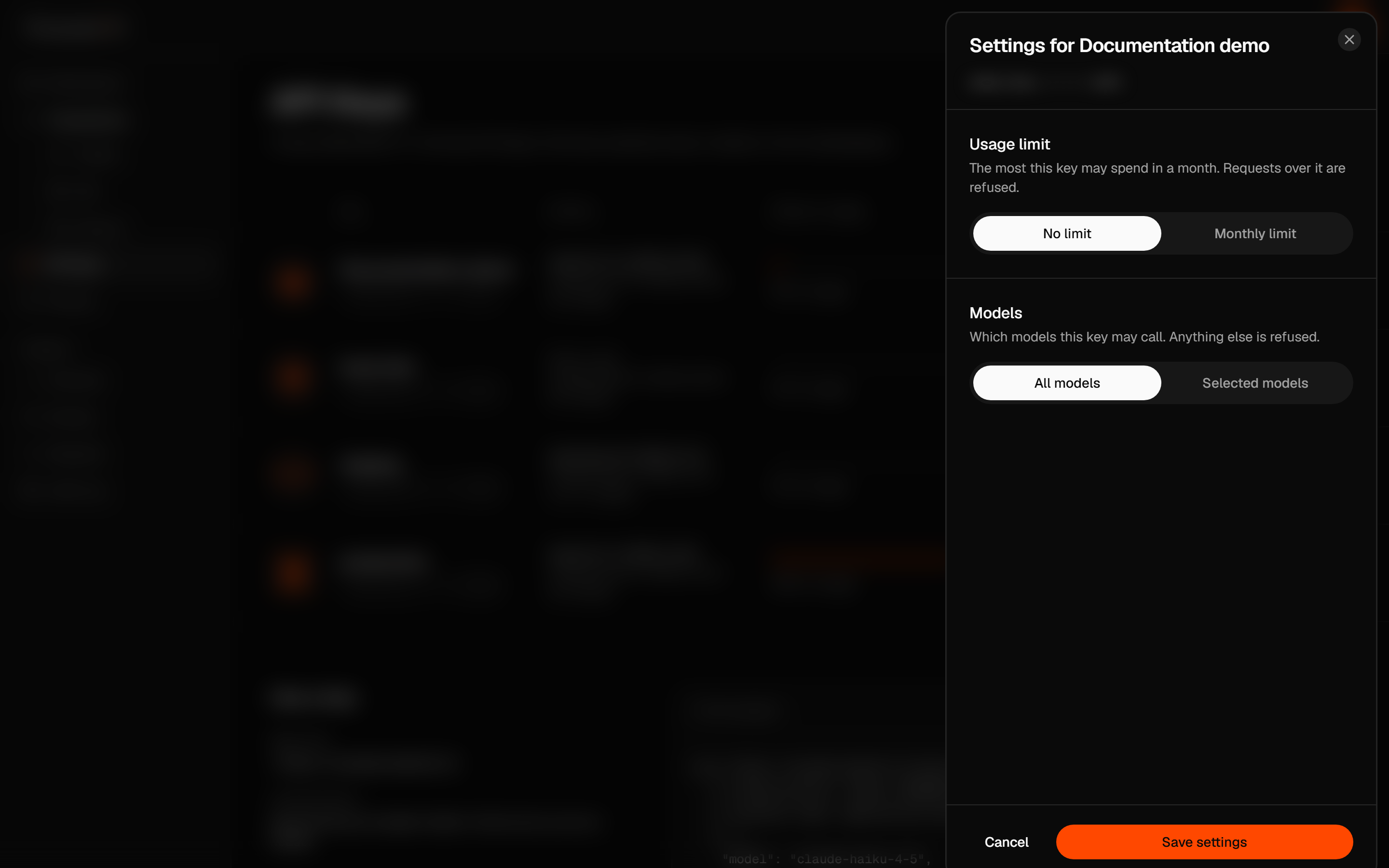
| Control | Effect |
|---|---|
| No limit / Monthly limit | Removes the key's spend cap or sets a positive USD cap. Your account still needs credits. |
| All models / Selected models | Allows any otherwise eligible model or restricts this key to your selection. |
| Currently unavailable models | Keeps saved model choices visible even when they are unavailable. Remove a choice explicitly if you no longer want it. |
The monthly budget uses a UTC calendar month. A request must fit the remaining budget including active holds. A request that would exceed it returns 402; a model outside the allowed selection returns 403.
Last 30 days is rolling spend. The settings panel currently uses that figure in its visual “left under the limit” estimate, while enforcement uses the UTC calendar month. Around a month boundary, those amounts can differ.
Your key's model selection and account-wide Routing model lists both apply. Allowing a model on the key does not override a routing blacklist or whitelist.
Read key activity
Last 30 days is the cost attributed to the key over that rolling period. Share of usage is its share of the displayed keys' spend, not its share of tokens. Used shows the last recorded use; a newly created key shows Never used until use is recorded.
Revoke a key
Select Revoke, then follow the confirmation buttons on that row. The key disappears from the active list and cannot authenticate new requests. Update applications to the replacement key before revoking an old key used in normal operation.
Key creation, settings changes, and revocation appear in Analytics → Audit Log, under Keys.